

This feature is available since Argento 1.5.2.
Create custom.xml layout file.
Add the following code:
<short_header_footer>
    <reference name="header">
        <action method="setTemplate"><template>page/html/header.phtml</template></action>
    </reference>
    <reference name="footer">
        <action method="setTemplate"><template>page/html/footer.phtml</template></action>
    </reference>
</short_header_footer>
Create custom.xml layout file.
Add the following code:
<argento_bottomnavbar_catalog>
    <reference name="before_body_end">
        <block type="core/text" name="catalog_bottomnavbar_additional">
            <action method="setText"><text><![CDATA[
                <script type="text/javascript">
                document.observe('bottomnavbar:init', function() {
                    BottomNavbar.add(
                        Translator.translate('Title'), // title in navbar ribbon
                        '.toolbar-bottom .sort-by' // block selector to show
                    );
                    BottomNavbar.add(
                        '.block-layered-nav .block-title span', // title selector for navbar ribbon
                        '.block-layered-nav' // block selector to show
                    );
                });
                </script>
                ]]></text>
            </action>
        </block>
    </reference>
</argento_bottomnavbar_catalog>
argento_bottomnavbar_catalog - is the handle that argento uses for the following pages:
You may add item for specific page only. To do that, change the argento_bottomnavbar_catalog handle to another.
Create custom.xml layout file.
Add the following code inside:
<remove name="collapsed_category_description"/>
Open category in backend view. Add the following code to the category layout update xml instructions:
<remove name="collapsed_category_description"/>
Apply the following layout update xml to the page:
<reference name="before_body_end">
    <block type="core/text" name="collapsed_colmain">
        <action method="setText"><text><![CDATA[
<script type="text/javascript">
var collapsed = new CollapsedElement();
collapsed.init('.col-main', {
maxHeight: 250,
height: 100
});
</script>
        ]]></text></action>
    </block>
</reference>
Open Admin > Catalog > Category and select category.
Switch to Custom design tab.
Add the following content to Custom layout update:
<reference name="root">
    <action method="setTemplate"><template>page/2columns-right.phtml</template></action>
</reference>
Possible values for template variable:
page/2columns-left.phtml
page/2columns-right.phtml
page/3columns.phtml
page/1column.phtml
Copy header.phtml and header_short.phtml files from your theme to _custom
theme. For example:
app/design/frontend/argento/default/template/page/html/header.phtml
app/design/frontend/argento/default/template/page/html/header_short.phtml
copy to:
app/design/frontend/argento/argento_custom/template/page/html/header.phtml
app/design/frontend/argento/argento_custom/template/page/html/header_short.phtml

OR

app/design/frontend/argento/mall/template/page/html/header.phtml
app/design/frontend/argento/mall/template/page/html/header_short.phtml
copy to:
app/design/frontend/argento/mall_custom/template/page/html/header.phtml
app/design/frontend/argento/mall_custom/template/page/html/header_short.phtml
Then open these files and find the following code:
<?php echo $this->getChildHtml('welcome') ?>
Replace it with:
<?php echo $this->getWelcome() ?>
Save the files and clear the cache.
To make your logo look crisp on devices with high pixel ratio value you should create the double sized logo from the vector logo source.
Move your standard and double sized logos to the custom skin folder:
skin/frontend/argento/{theme}_custom/images/{logo_name}.gif
skin/frontend/argento/{theme}_custom/images/{logo_name}@2x.gif
{theme} - is the theme name that you are using {logo_name} - is the name of your original logo file
For example:
skin/frontend/argento/mall_custom/images/logo.gif
skin/frontend/argento/mall_custom/images/logo@2x.gif
OR
skin/frontend/argento/argento_custom/images/storeLogo.png
skin/frontend/argento/argento_custom/images/storeLogo@2x.png
Find your CMS page unique classname i. e. .cms-about (usually it’s located in <body class=“CMS-ABOUT”> tag).
Go to your custom.css file and add following code using your CMS page selector:
.cms-about .main {
   max-width: 100%;
   padding: 0;
}
It will make your page content expand to full page width.
In case you want to leave some blocks the fixed width, wrap them with <div class="container">BLOCK CONTENT HERE</div>
Create or edit existing custom.xml layout file of your theme.
Add the following code inside:
<catalog_product_view>
    <reference name="product.info.tabs">
        <action method="unsetChild" module="askit" ifconfig="askit/general/enabled">
            <alias>askit_tabbed</alias>
        </action>
    </reference>
</catalog_product_view>
Flush cache
Create or edit existing custom.js file of your theme.
Add the following code to file:
document.observe("dom:loaded", function(){
    $$('.catalog-product-view .grouped-items-table .input-text').each(function(el){
        el.value='';
    })
});
Flush cache
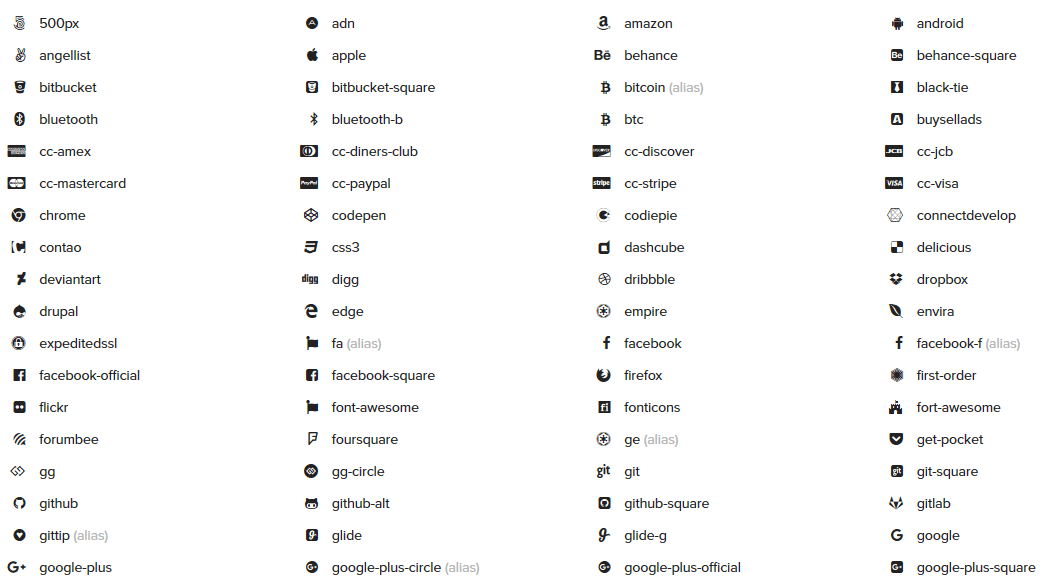
Argento has integrated FontAwesome{: target="_blank"} scalable vector icons support. So you can insert more then 760 icons just using one tag.
For Example: To add new Instagram icon to homepage content - follow these instructions:
Go to FontAwesome{: target="_blank"} site and find Instagram icon in search
Copy <i class="fa fa-instagram"></i> html code.
And insert it to Admin > CMS > Pages > 'home' > Content in a place you need.
NOTE: Your WYSIWYG Magento editor should be disabled while saving FontAwesome tags as it cuts empty
<i>tags on save when turned ON.
You should get following look:
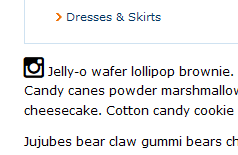
Also you can add same CSS properties for FontAwesome tags that could be applied
to other TEXT tags: font-size, color, font-weight etc.
More exclusive FontAwesome options you will find at Examples Page{: target="_blank"}:
Often users are having issues with missing arrows, icons and other elements at Argento homepage. That is caused by default Magento WYSIWYG editor cutting-out “unknown” tags.
RECOMMENDATION: Please disable default Magento WYSIWYG editor (
System > Configuration > Content Management > Enable WYSIWYG Editor = Disabled by Default)If you don’t want to disable it - just don’t forget to turn it off before pushing Save button while editing content.
If you saved homepage or service_sidebar content with WYSIWYG = ON and have
missing elements - here’s list of original homepages content for all Argento designs
to compare and restore:
When you need to hide attributes that have “N/A” or “No” values in additional attributes table you can use following solution
Go to app/argento/[mytheme]_custom/template/catalog/product/view/attributes.phtml
(or copy this file in your theme from
app/design/frontend/argento/default/template/catalog/product/view/attributes.phtml)
line 37
Add following lines:
<?php foreach ($_additional as $_data):
    // Add these 2 lines
    $_test_data_value = trim($_data['value']);
    if ((empty($_test_data_value) || in_array($_test_data_value, array(Mage::helper('catalog')->__('N/A'), Mage::helper('catalog')->__('No'))))) continue;?>
Check your site now.
This website uses cookies to improve your experience. By clicking “Deny”, you consent to the use of Necessary cookies only. You may also accept selected cookies only.